Home Page
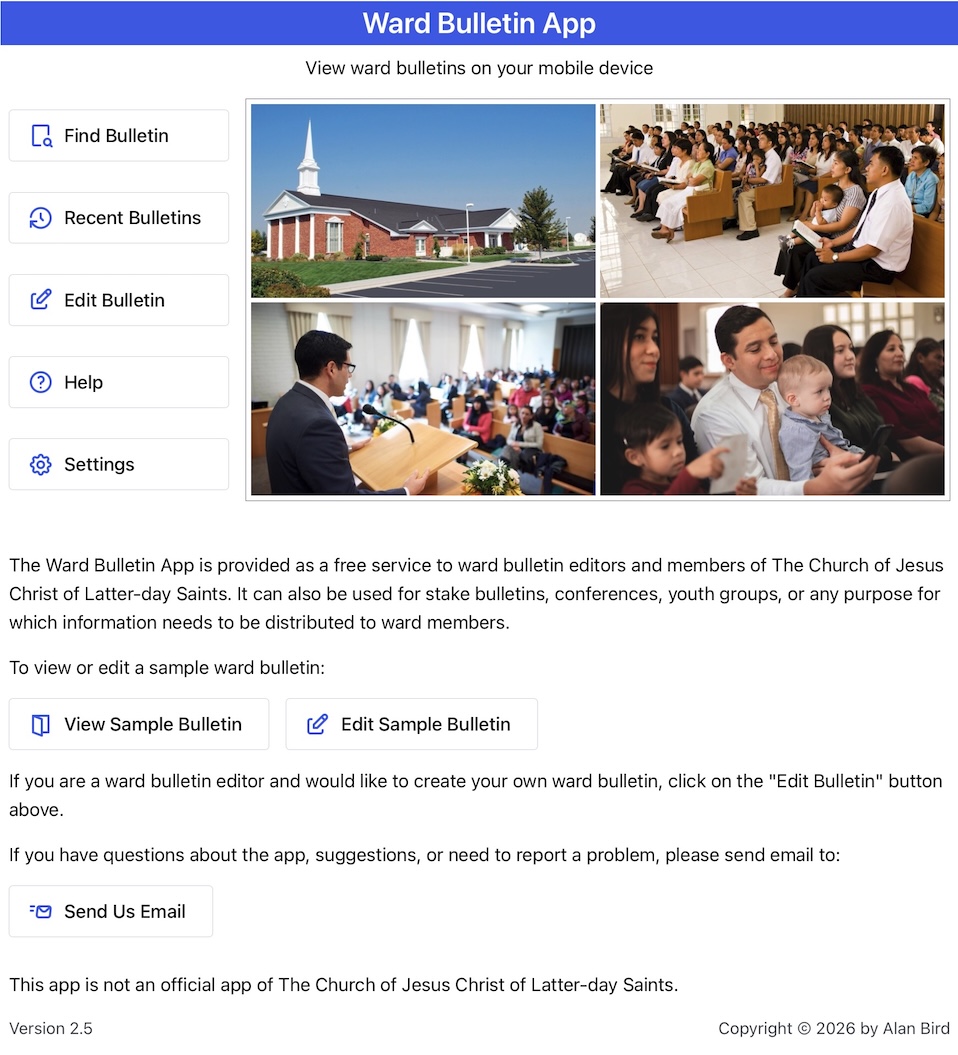
The first time you open the app, you will be directed to the Home page. You can always return to the Home page by pressing the Back button in the upper left corner.
Find Bulletin
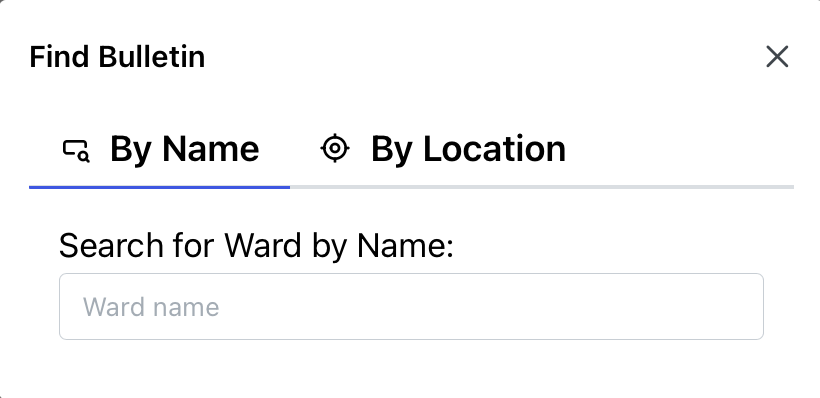
Select Find Bulletin to find your ward bulletin by searching for it by name or based on your current location.
Recent Ward Bulletins
Select Recent Bulletins to see a list of bulletins you have previously viewed. Tap on the name of the bulletin to view it. Click on the trash icon to remove it from the list.
Creating or Editing the Bulletin
Select Edit Bulletin to create a ward bulletin for your ward or to make changes to your existing bulletin.
See Signing In (opens in a new tab) for instructions on creating a new ward bulletin.
Help
Select Help to view this help document.
Settings
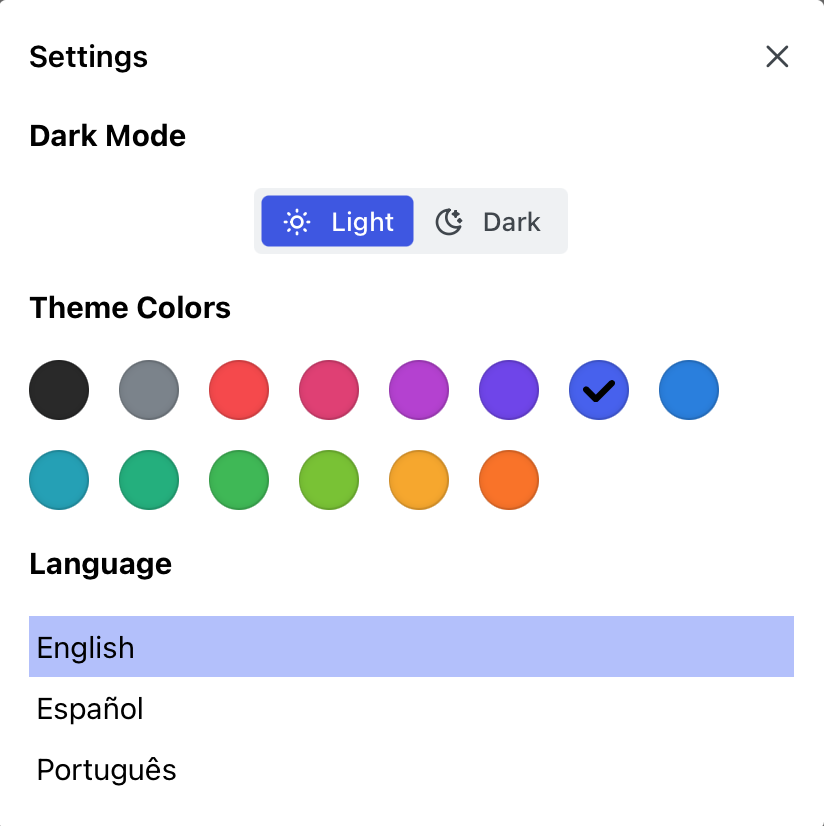
Select Settings to view the home page settings.
Dark Mode
Click on Light or Dark to change dark mode.
Theme Colors
Click on a color to set the theme color for the app.
Language
Select a language for the app.
Sample Bulletin
Click on the View Sample Bulletin button to get an idea what a ward bulletin might look like. Click on Edit Sample Bulletin to try out the bulletin editor. Changes made to the sample bulletin will not be saved.
Send Feedback Email
If you have a problem or question and would like to contact the developer, click on the Send Us Email button, or send an email to wardbulletinapp@gmail.com.